🐳 Docker Beginner to Advanced – Single Markdown
| Feature | VMs | Containers |
|---|---|---|
| Virtualizes | Hardware | OS / Runtime |
| OS Requirement | Own OS per VM | Shared host OS |
| Size | Heavy (GBs) | Light (MBs) |
| Boot Time | Minutes | Seconds |
| Performance | Moderate | Near-native |
| Isolation | Strong | Moderate–Strong |
| Portability | Good | Excellent |
| Use Case | Monolithic / Legacy | Microservices / Cloud |
Real-World Examples
VMs Used In:
- AWS EC2, Azure VM
- Running Windows + Linux on same server
- Banking and enterprise systems
Containers Used In:
- Docker
- Kubernetes
- Microservices like Netflix, Uber, Spotify
- CI/CD pipelines
🧠 How Containers Actually Work (Under the Hood)
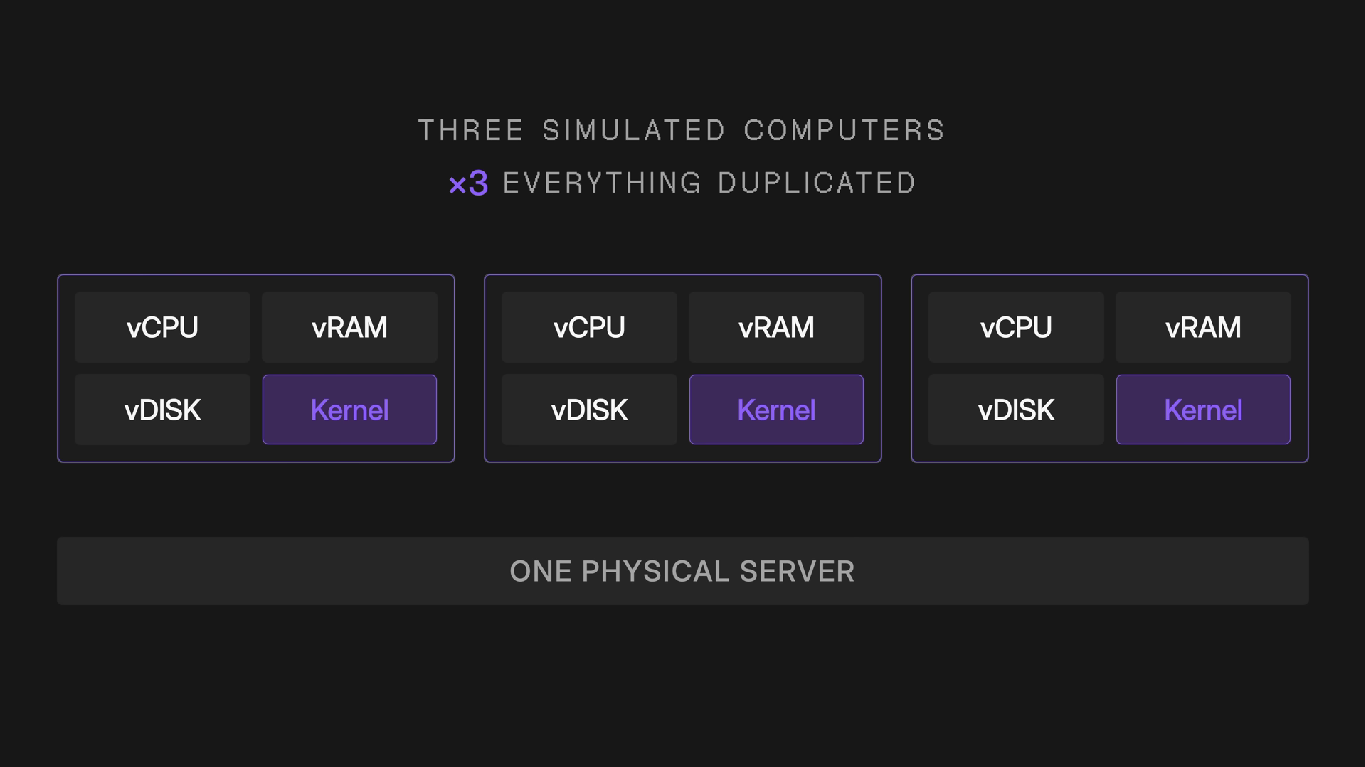
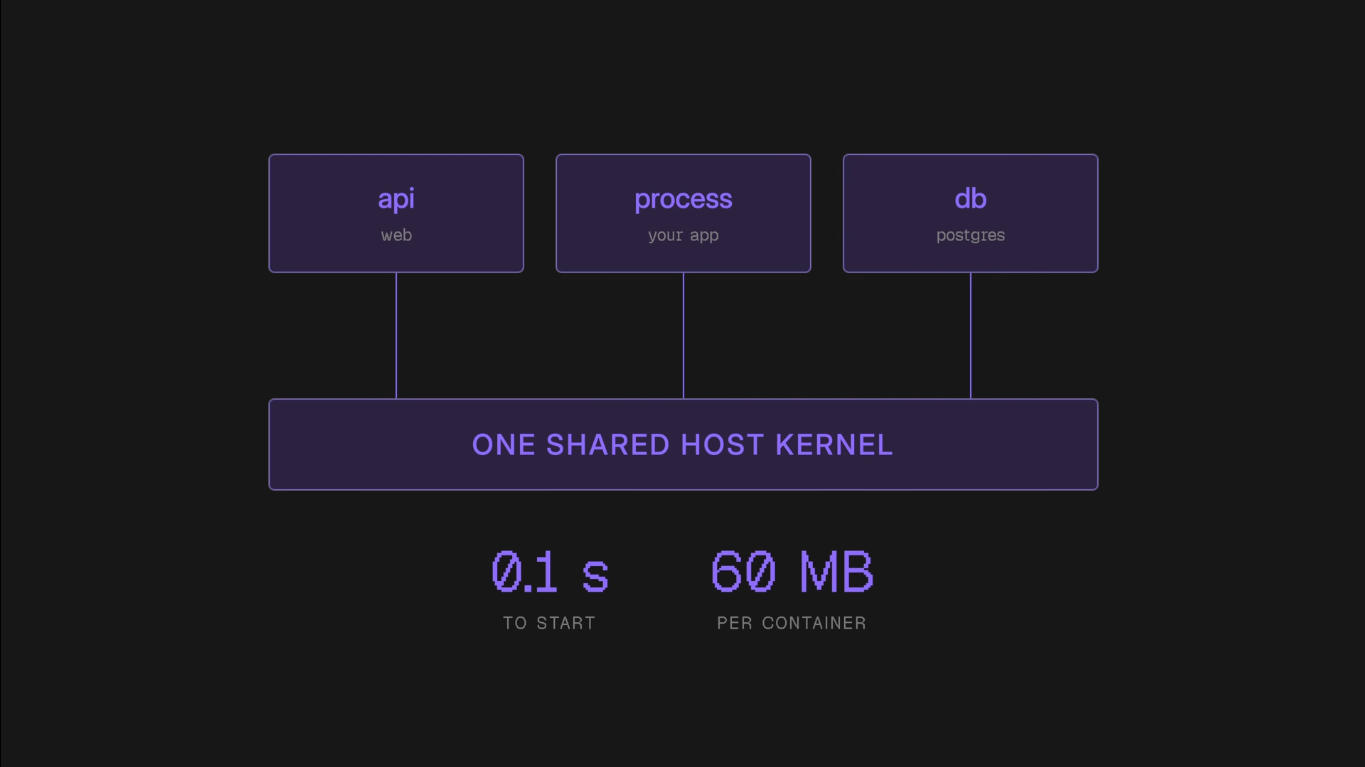
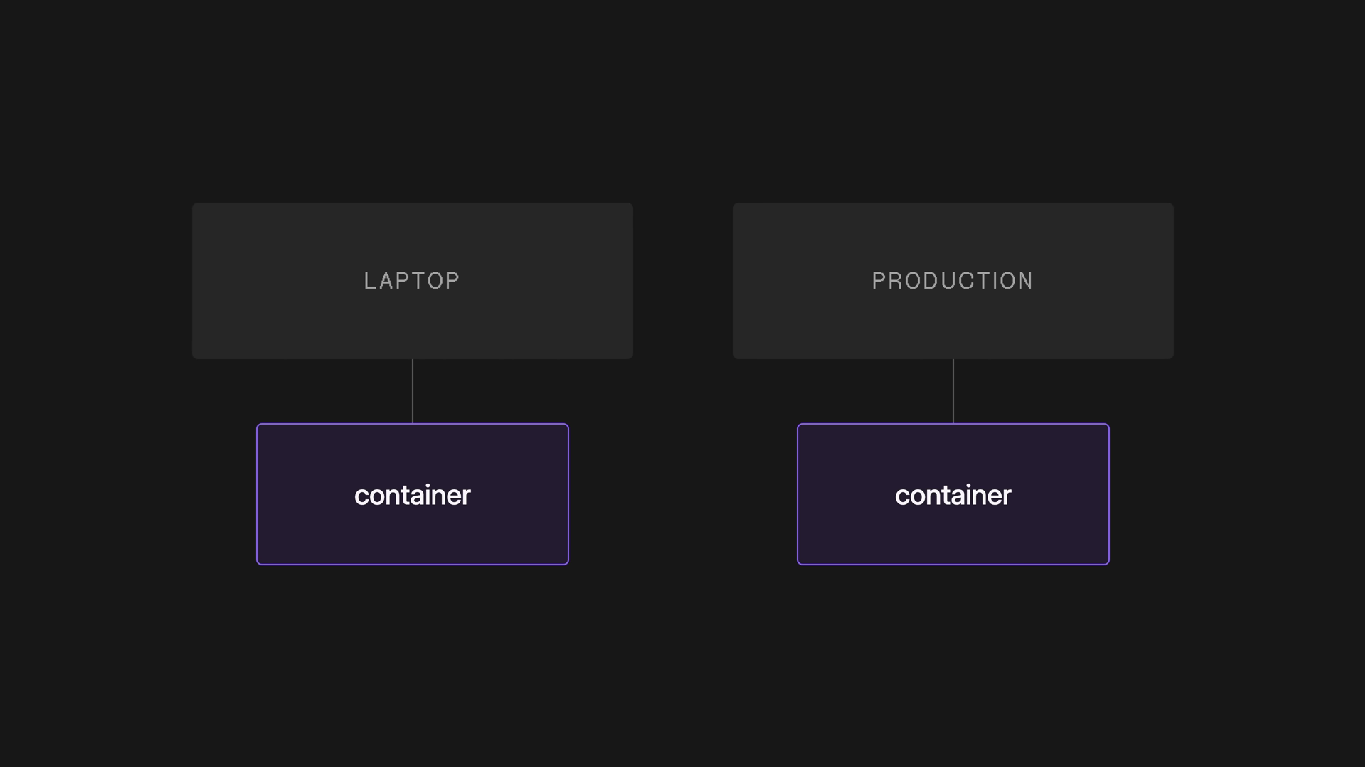
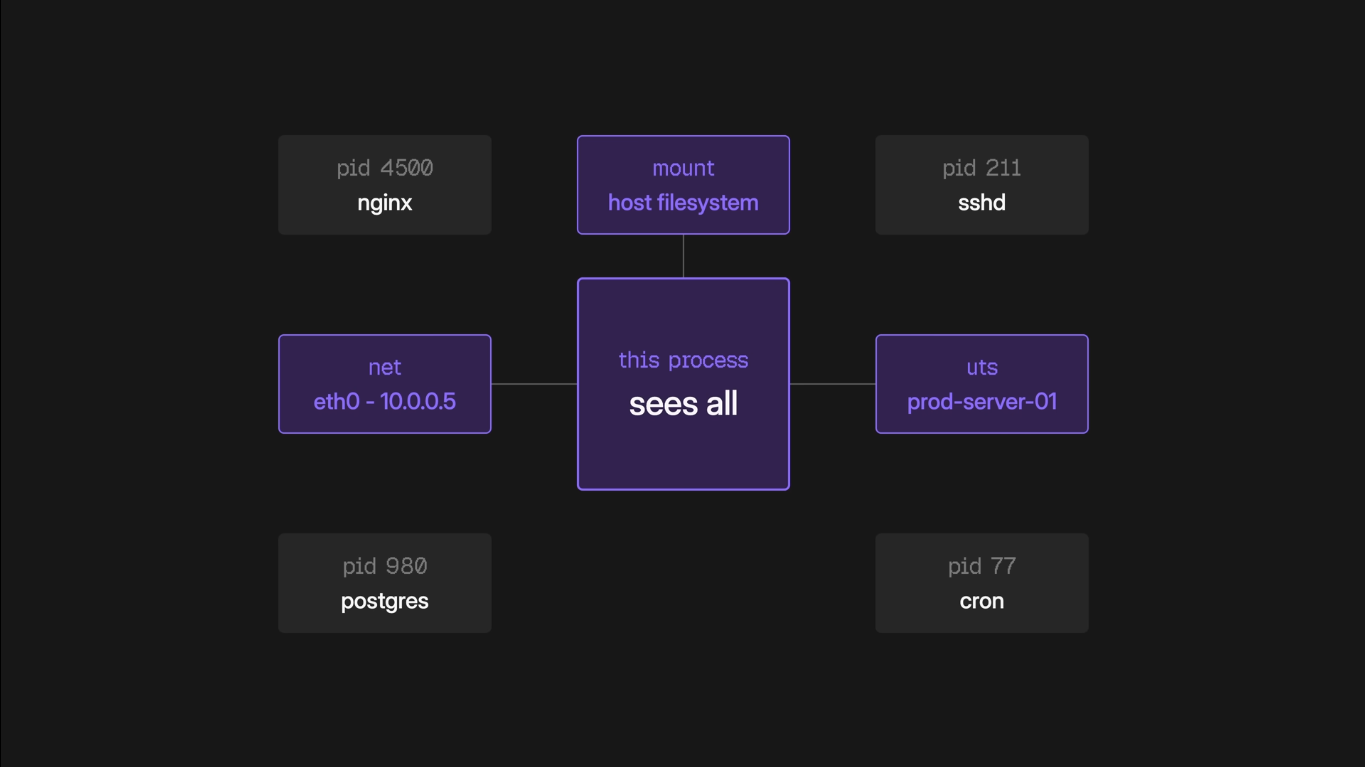
Containers are not virtual machines. They don't have their own kernel.
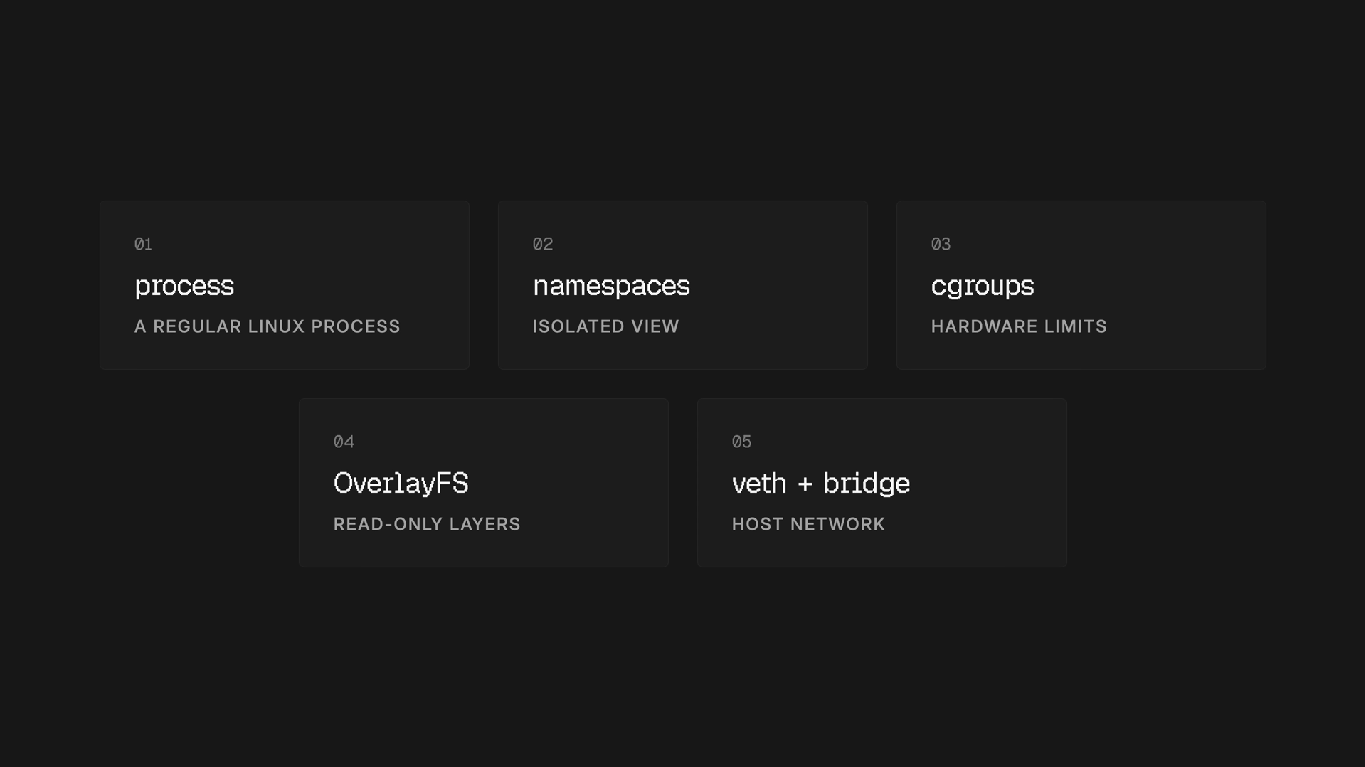
Instead, they use Linux kernel features — primarily Namespaces and Cgroups — to create isolated environments that feel like separate machines.
🔹 1. Linux Namespaces (Isolation)
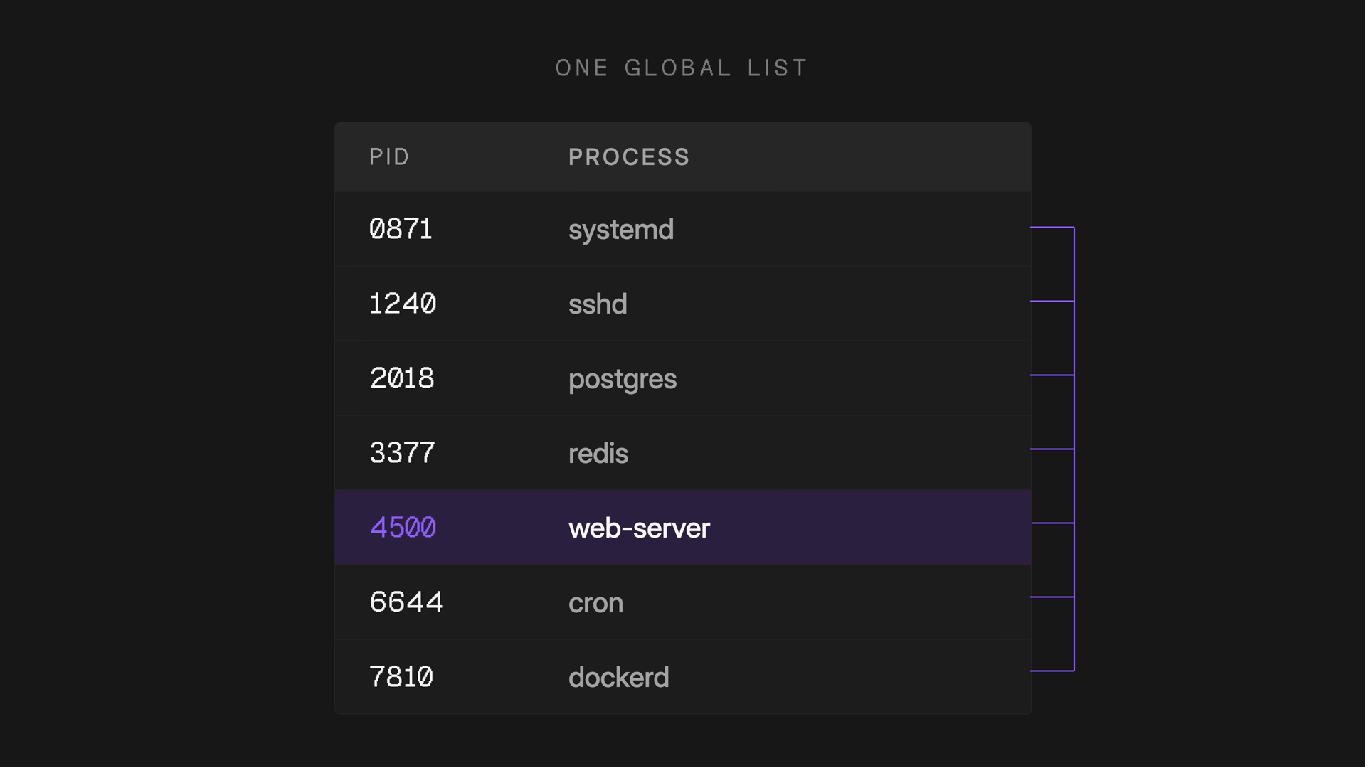
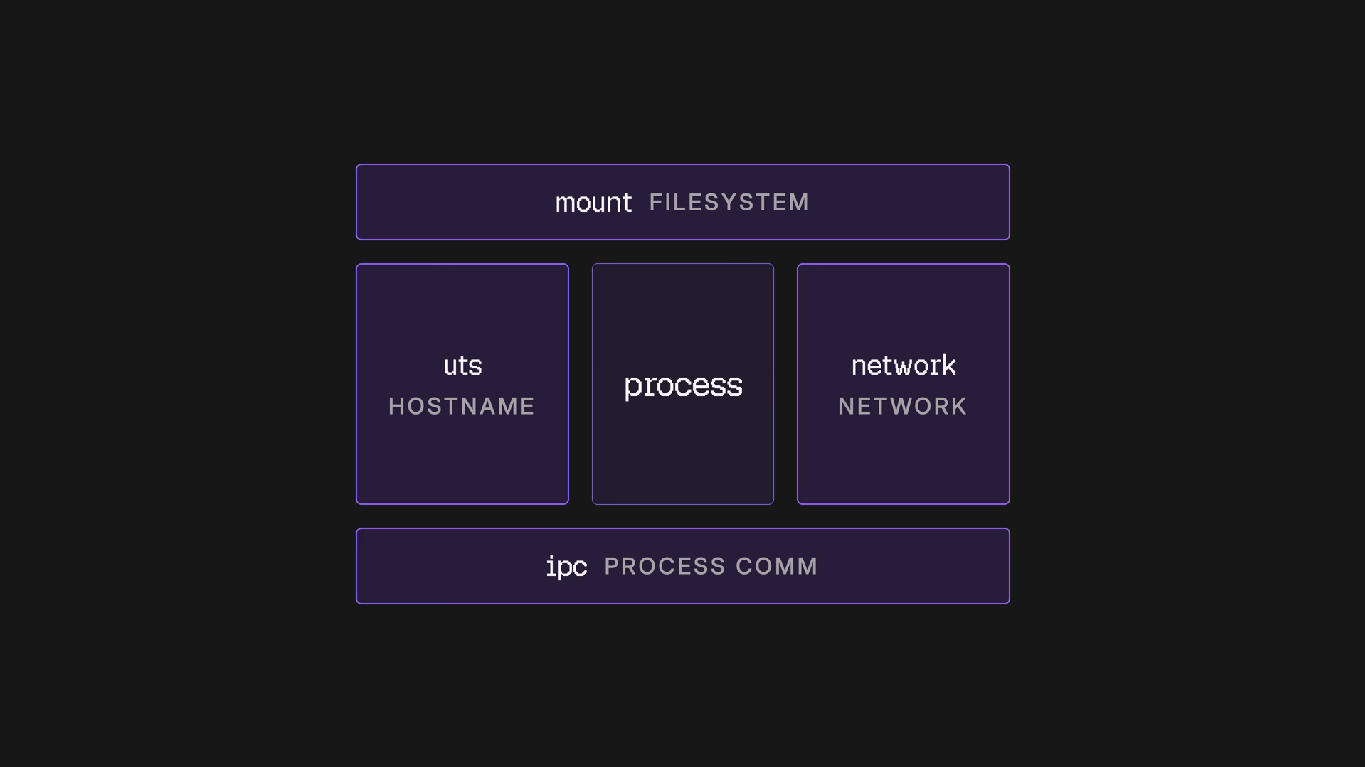
Namespaces provide isolation — they control what a container can see.
Each container gets its own isolated view of system resources.
| Namespace | Flag | What It Isolates | Example |
|---|---|---|---|
| PID | CLONE_NEWPID |
Process IDs | Container sees its own PID 1, can't see host PIDs |
| NET | CLONE_NEWNET |
Network interfaces, IPs, routes, ports | Container gets its own eth0, IP address |
| MNT | CLONE_NEWNS |
Mount points (filesystem) | Container has its own /, /etc, /var |
| UTS | CLONE_NEWUTS |
Hostname and domain name | Container can have hostname web-server-1 |
| IPC | CLONE_NEWIPC |
Inter-process communication (shared mem) | Containers can't access each other's shared memory |
| USER | CLONE_NEWUSER |
User and Group IDs | Root inside container ≠ root on host |
| CGROUP | CLONE_NEWCGROUP |
Cgroup root directory | Container sees only its own cgroup hierarchy |
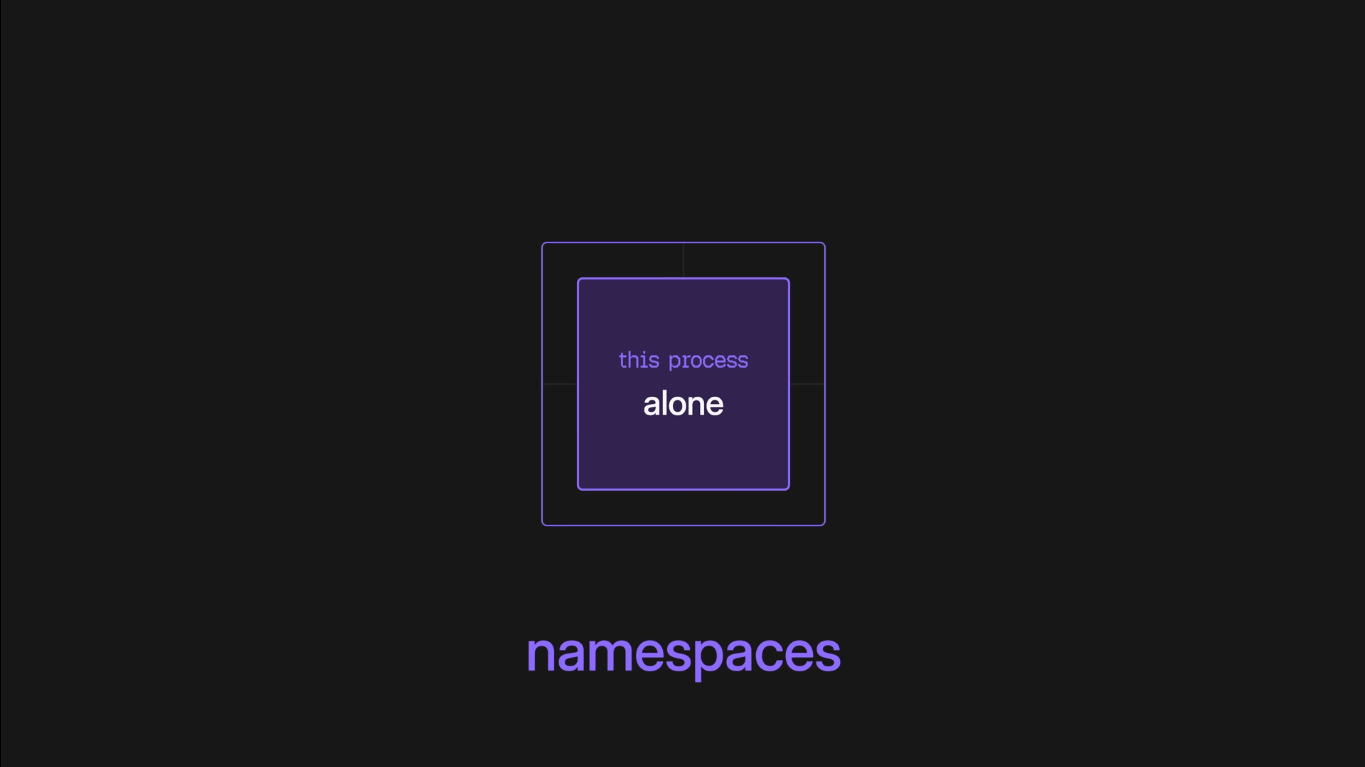
How Namespaces Work — Example
When Docker runs a container, it essentially calls the Linux clone() syscall with namespace flags:
// Simplified — what Docker does under the hood
clone(container_main, stack,
    CLONE_NEWPID | CLONE_NEWNET | CLONE_NEWNS | CLONE_NEWUTS | CLONE_NEWIPC,
    args);
Result: The process inside the container thinks it's the only process (PID 1), has its own network, its own filesystem, and its own hostname — all while sharing the same kernel as the host.
Verify Namespaces on Your Host
# List namespaces of a running container
docker inspect --format '{{.State.Pid}}' <container_name>

# Then check its namespaces
ls -la /proc/<PID>/ns/
Output:
lrwxrwxrwx 1 root root 0 ... cgroup -> cgroup:[4026532xyz]
lrwxrwxrwx 1 root root 0 ... ipc    -> ipc:[4026532xyz]
lrwxrwxrwx 1 root root 0 ... mnt    -> mnt:[4026532xyz]
lrwxrwxrwx 1 root root 0 ... net    -> net:[4026532xyz]
lrwxrwxrwx 1 root root 0 ... pid    -> pid:[4026532xyz]
lrwxrwxrwx 1 root root 0 ... user   -> user:[4026532xyz]
lrwxrwxrwx 1 root root 0 ... uts    -> uts:[4026532xyz]
🔹 2. Control Groups — cgroups (Resource Limiting)
Cgroups control how much resources a container can use.
While namespaces handle isolation, cgroups handle limitation.
What Cgroups Control
| Resource | What It Limits | Example |
|---|---|---|
| CPU | CPU time / shares / cores | Limit to 50% of one CPU core |
| Memory | RAM usage (hard and soft limits) | Max 512MB, kill if exceeded |
| Block I/O | Disk read/write speed | Limit to 10MB/s write speed |
| Network | Bandwidth (via tc, not directly cgroups) | Throttle to 1Mbps |
| PIDs | Max number of processes | Limit to 100 processes |
| Device | Access to specific devices (/dev/*) |
Block access to GPU or USB |
Docker Commands Using Cgroups
# Limit memory to 256MB and CPU to 1.5 cores
docker run -d --memory="256m" --cpus="1.5" nginx

# Limit CPU shares (relative weight, default 1024)
docker run -d --cpu-shares=512 nginx
🔹 3. Union File Systems (UnionFS / OverlayFS)
Docker images use layered filesystems. Each instruction in a Dockerfile creates a new read-only layer.
When a container runs, a thin writable layer is added on top.
┌─────────────────────────┐
│   Writable Layer                       │  ← Container (read-write)
├─────────────────────────┤
│   Layer 3: COPY app.j                  │  ← Image layer (read-only)
├─────────────────────────┤
│   Layer 2: RUN npm i                   │  ← Image layer (read-only)
├─────────────────────────┤
│   Layer 1: apt install                 │  ← Image layer (read-only)
├─────────────────────────┤
│   Base: ubuntu:22.04                   │  ← Base image (read-only)
└─────────────────────────┘
Why this matters:
- Layers are shared between containers — saves disk space
- Only changed files are stored in the writable layer (copy-on-write)
- Rebuilds are fast because unchanged layers are cached
# View layers of an image
docker history nginx

# Check the storage driver in use
docker info | grep "Storage Driver"
# Common: overlay2 (default), aufs (legacy)
🔹 4. chroot (Change Root)
chrootchanges the root directory for a process.
Docker uses this concept to give each container its own filesystem root/.
# Basic chroot example (non-Docker)
sudo chroot /path/to/new/root /bin/bash
# Now "/" points to /path/to/new/root
Docker goes beyond basic
chrootby combining it with namespaces and cgroups,
which is why containers are far more secure than a plainchrootjail.
🔹 5. How Docker Puts It All Together
docker run -d --name web -p 80:80 --memory=256m nginx"] --> Daemon
subgraph Daemon["🐳 Docker Engine (dockerd / containerd)"]
direction TB
S1["1. Pull Image (Layered RootFS)"]
S2["2. Create Container Metadata"]
S3["3. Configure Linux Namespaces (Isolation)"]
S4["4. Configure Cgroups (256MB RAM Limit)"]
S5["5. Mount Overlay2 Union Filesystem"]
S6["6. Set Up Virtual Ethernet (veth pair)"]
S1 --> S2 --> S3 --> S4 --> S5 --> S6
end
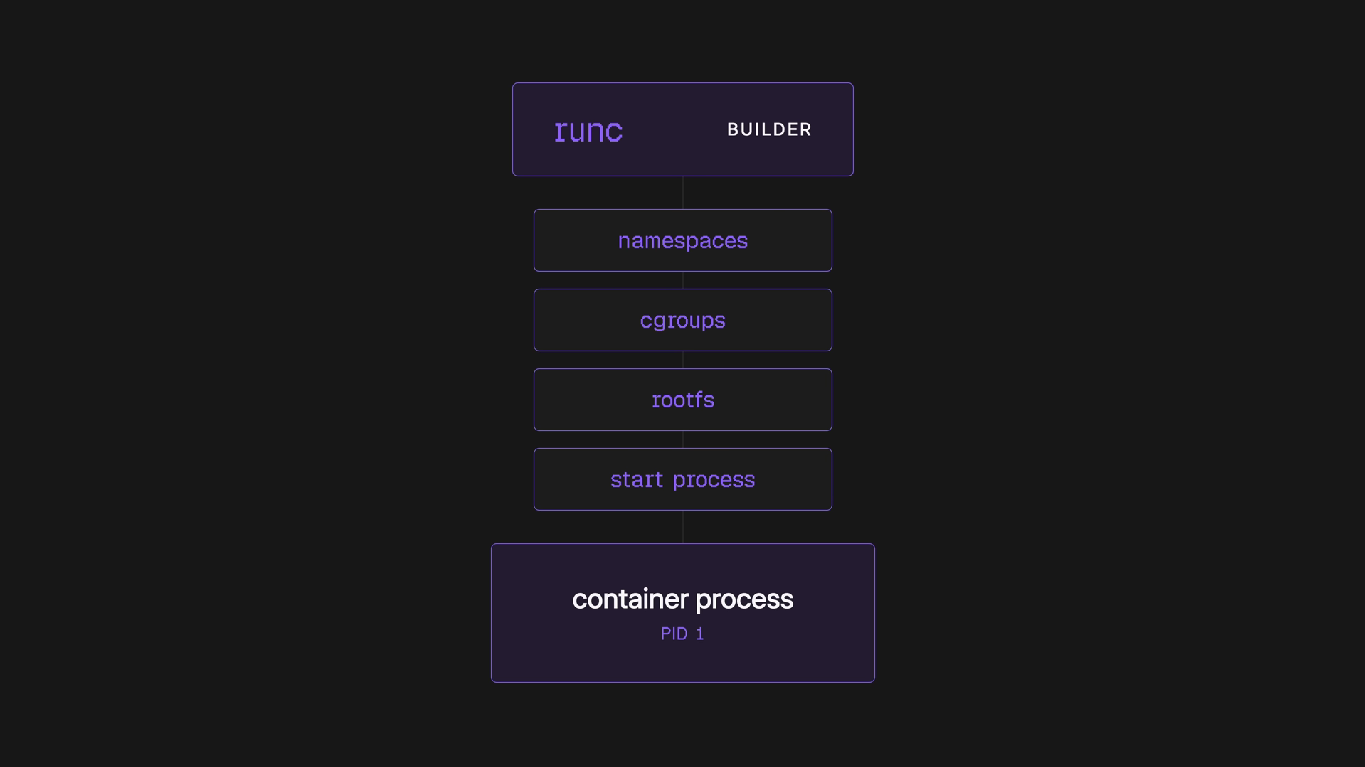
Daemon --> Runc
subgraph Runc["⚙️ Container Runtime (runc / OCI)"]
direction TB
R1["Calls clone() with Namespace flags"]
R2["Applies Cgroup resource limits"]
R3["Calls pivot_root()"]
R4["Executes Entrypoint (Nginx Process)"]
R1 --> R2 --> R3 --> R4
end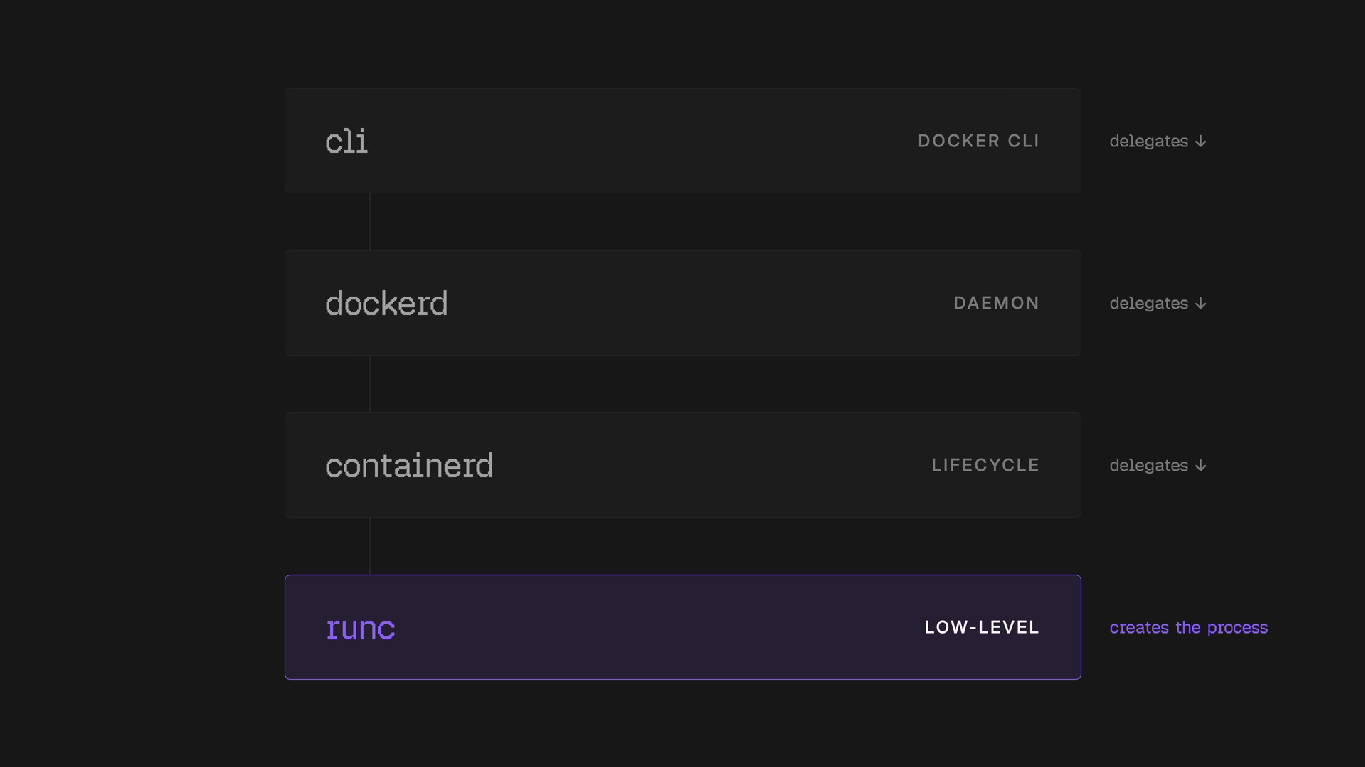
Key components:
- dockerd — Docker daemon, manages containers
- containerd — Container lifecycle manager
- runc — Low-level OCI runtime that actually creates containers using kernel primitives
What Is Docker?
Docker is a platform that lets you build, run, and manage applications in lightweight containers.
Containers include everything needed to run apps — code, libraries, runtime, and configs.
1. Install Docker
Check Docker version:
docker --versionIf not installed → download from Docker Docs
Run a container in background:
docker run -d -p 80:80 docker/getting-startedMeaning:
-d→ detached mode-p 80:80→ hostPort:containerPortdocker/getting-started→ image name
Run container in foreground (interactive):
docker run -it -p 8001:8080 --name my-nginx nginxMeaning:
-it→ interactive shell--name my-nginx→ give name; if not provided, a random name is givennginx→ image name
2. Basic Docker Commands
| Command | Use |
|---|---|
docker images |
List images |
docker rm <name/id> |
Remove container |
docker logs <name/id> |
View logs |
docker exec -it <name/id> bash |
Enter container shell |
3. Containers
- Start a container
docker start <name/id>- Stop a container
docker stop <name/id>- Restart a container
docker restart <name/id>- Kill a container
docker kill <name/id>- Clean All
Cleans up dangling images, containers, volumes, and networks (i.e., not associated with a container)
docker system pruneAdditionally, remove any stopped containers and all unused images (not just dangling images):
docker system prune -a4. Information
| Command | Description |
|---|---|
docker ps |
List running containers |
docker ps -a |
List all containers |
docker logs <name/id> |
Container logs |
docker inspect <name/id> |
Inspecting containers |
docker events <name/id> |
Container events |
docker port <name/id> |
Public ports |
docker top <name/id> |
Running processes |
docker stats <name/id> |
Container resource usage |
docker diff <name/id> |
Lists the changes made to a container |
5. Update
- Create Container (without running)
docker create --name my_redis --expose 6379 redis- Rename an existing container
docker rename oldName newName- Update Resources
docker update --cpu-shares 512 -m 300M <name/id>6. Manipulating Images
| Command | Description |
|---|---|
docker images |
Listing images |
docker rmi nginx |
Removing an image |
docker load < ubuntu.tar.gz |
Loading a tarred repository |
docker load --input ubuntu.tar |
Loading a tarred repository |
docker save busybox > ubuntu.tar |
Save an image to a tar archive |
docker history |
Showing the history of an image |
docker commit nginx |
Save a container as an image |
docker tag nginx eon01/nginx |
Tagging an image |
docker push eon01/nginx |
Pushing an image |
7. Docker Hub
docker login
docker push myrepo/nginx- Commit Container → Image
docker commit containerName newImageName- Docker Search
docker search nginx- Logout
docker logout8. Build Your Own Image (Dockerfile)
docker build -t myapp .9. Docker Networking
List Networks
docker network lsInspect Network
docker network inspect MyNetworkCreate Network
docker network create MyNetworkRun Container With Network
docker run -d --network MyNetwork nginxConnect Running Container
docker network connect MyNetwork my-nginxDisconnect
docker network disconnect MyNetwork my-nginxRemove Network
docker network rm MyNetwork10. Volumes (Persistent Storage)
- Create Volume
docker volume create myVolume- Attach Volume
docker run -d -v myVolume:/data nginx- List Volumes
docker volume ls- Remove Unused
docker volume prune11. Adding DNS to Docker Containers
You can control how containers resolve domain names using Docker DNS options.
Add DNS While Running a Container — use the
--dnsflag withdocker run:
docker run -it --name myapp --dns 8.8.8.8 --dns 1.1.1.1 ubuntu bashMeaning:
8.8.8.8→ Google DNS1.1.1.1→ Cloudflare DNS- Multiple DNS servers allowed (Docker tries in order)
🔎 Check DNS Inside Container
cat /etc/resolv.confYou will see entries like:
nameserver 8.8.8.8
nameserver 1.1.1.1